Find out before you overwrite.
An unfamiliar sticker might already hold useful information. Read it first to check the contents, available space and whether you can change it.
Tag inspectionLocal scan history
NFC tag reader, writer & QR tools for Android
A contact at reception. A manual beside a machine. A routine at your desk. Prepare the content on your Android phone, write it to a compatible NFC tag, and test the next tap.
Free to download · Contains ads and in-app purchases
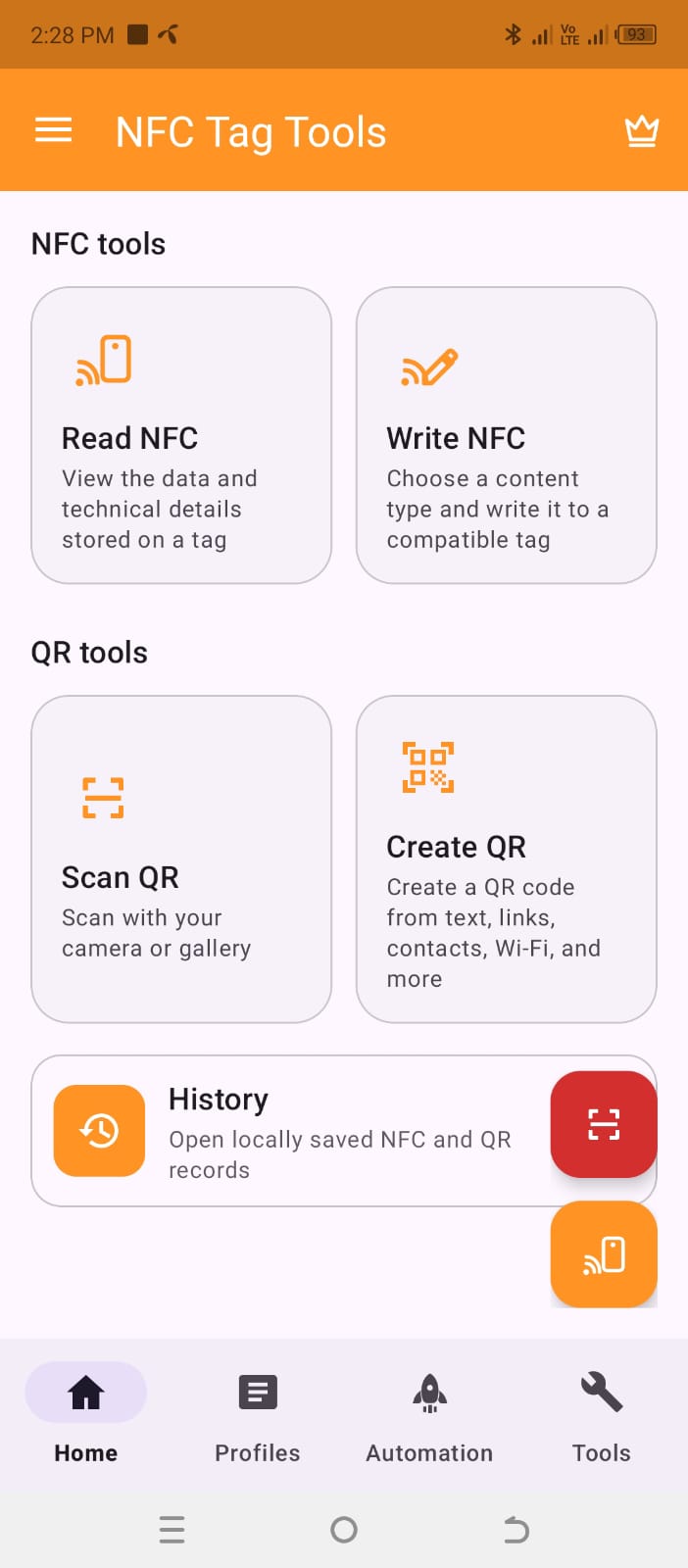
A tag is easier to manage when you can see what it holds, prepare what comes next, and reuse the work you have already done.
An unfamiliar sticker might already hold useful information. Read it first to check the contents, available space and whether you can change it.
Put a website link beside a short note, or keep contact details together. Arrange supported records in a document before sending them to your tag.
Preparing several labels? Save your document as a profile or copy compatible NDEF content, so the next label does not require the same typing again.
For technical work, inspect supported NTAG memory or use the advanced command workspace. These tools are for understanding compatible tags, not duplicating access credentials.
The best place for a tag is somewhere you repeatedly need the same information or action. Here are three setups to try.
Prepare a contact record or a link to your business page. Put the tag where visitors can reach it, and test the result on the phones you expect them to use.
Example: a reception contact card
Write a short note or a link to an online manual. A label beside a device can help someone find the right instructions without searching through messages.
Example: a link to a printer setup guide
Build a task that opens a work app, then your project website. Preview it on your phone before writing it to a tag beside your desk.
Example: a two-action desk routine
These are suggested setups. Reading behavior and task execution vary by phone, tag and permissions; test each setup before relying on it.
Start with two actions you already do together, such as opening an app and its project link. Arrange them in a Task Profile, try the sequence, and add conditions only when they serve a clear purpose.
Available actions depend on your device, Android version and permissions.
A short URL makes a simple first test: you know what the tag should contain, and can easily check it afterward.
Open the website yourself to confirm the address. In the app, choose a URL record and enter that address. Check for spelling mistakes.
Enable NFC on your phone, choose Write, and hold a writable tag near the phone’s NFC reading area. Keep it there until the app reports the result.
Read the tag again and compare the saved URL. Test the destination, then save a profile if you will make more labels with the same link.
Need to put a link on a printed sheet or send contact details as an image? Create a QR code, adjust its style, and export a PNG. Scan the final design before printing or sharing it.
QR tools work even without NFC hardware.
Explore the actual app screens. Select a screenshot for a larger view.
Swipe to explore all three screens.
NTAG213, NTAG215 and NTAG216 are common NFC tag options. Their user-memory sizes differ; the complete encoded record also takes space.
| Tag | User memory | What to consider |
|---|---|---|
| NTAG213 | 144 bytes | Check the encoded size for short links or compact notes. |
| NTAG215 | 504 bytes | More room when adding fields or combining records. |
| NTAG216 | 888 bytes | The largest of these three for longer documents or tasks. |
Memory figures: NXP NTAG213/215/216 specifications. These are user-memory capacities, not guaranteed text lengths. Let the app check your actual document against the target tag before writing.
Test and refine your content before making a tag read-only. Permanent locking prevents future changes.
Start with the result you can observe, rather than changing everything at once.
Ask the app’s support teamConfirm that the phone has NFC hardware and NFC is enabled. Move the tag slowly around the phone’s NFC reading area, then hold it still. Try a known compatible tag to help distinguish a phone issue from a tag issue.
Reading does not mean rewriting is possible. Check whether the tag is locked, protected or too small for your document. Try a shorter record and review the app’s write result before attempting another tag.
No. The copying workflow handles NDEF content, which is the message stored on compatible tags. It does not reproduce a card’s identity, payment credentials or protected access data.
A profile is the content you prepare in the app. Treat each physical tag as a separate copy: write the revised document to tags you want to update, then read them back to verify it.
Do not assume identical behavior across phones. Task execution depends on compatible software, device capabilities and permissions. Preview the workflow on the phone that will run it.
Use a tag when a nearby tap fits the setting and the intended phone supports NFC. A QR image is another way to share a link or details using the camera, including on phones without NFC. Test the final tag or image before sharing.
The app is free to download and contains ads and in-app purchases. Check the current options in the app or its Google Play listing before purchasing.
Install NFC Tag Tools and start with one short link.
GET IT ONGoogle Play